
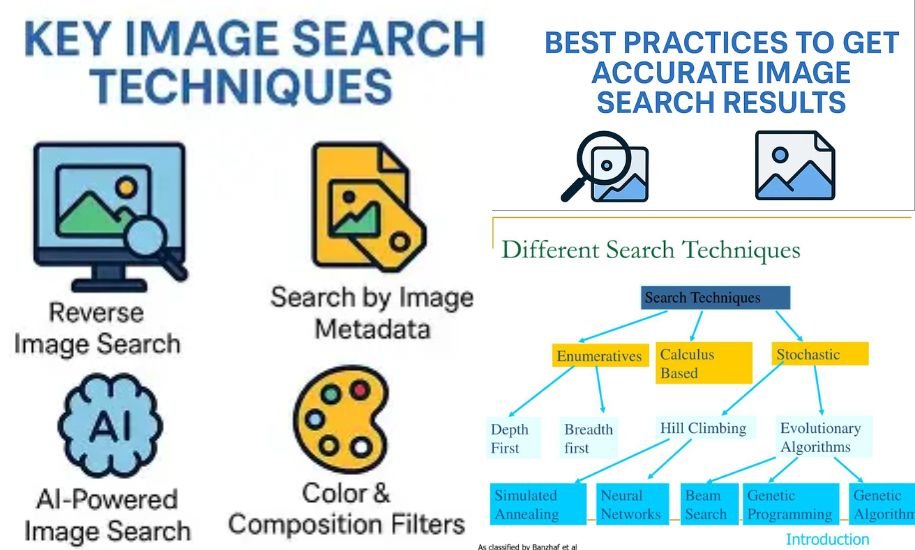
In our visually driven world, finding the right image can feel like searching for a needle in a haystack. But what if I told you that the images themselves hold answers—answers to verification, discovery, inspiration, and even growth? Whether you’re looking to spice up your blog, create an eye-catching presentation, or find the perfect product online, knowing how to effectively search for images isn’t just helpful—it’s essential.
Using Search Engines Like a Pro
Search engines are often our first stop when hunting for images, but simply typing a word isn’t enough anymore. Platforms like Google Images and Bing offer a multitude of tools that help you narrow results, analyze relevance, and even discover visuals you didn’t know existed.
Choosing Your Engine Wisely: While Google remains the go-to choice for many, alternative engines like Bing or Yahoo! have unique features that may suit specific needs better. Bing, for example, allows interactive visual discovery, while Google provides powerful reverse search capabilities with AI integration.
Crafting Effective Keywords: The real magic is in your keywords. Instead of vague terms like “nature,” try something like “autumn forest landscape”. Specificity transforms your search from a shot in the dark to a direct hit.
Utilizing Filters: Filters are more than cosmetic—they’re your shortcut to precision. Sort by size, color, type (clipart, photo), or usage rights to find exactly what you need. Want a high-resolution black-and-white image for printing? Filters will save hours of tedious scrolling.
Checking Sources Carefully: Finding the perfect image is only half the battle. Always trace it back to its source. Clicking through often reveals licensing information, author details, or context that ensures your use is safe and ethical.
Social Media Isn’t Just for Sharing – It’s a Visual Goldmine
Platforms like Instagram, Pinterest, and even Facebook aren’t just for social connections—they’re treasure troves of visual inspiration.
Instagram & Pinterest: Hashtags are your secret weapon. Searching #Travel or #InteriorDesign instantly opens a world of stunning visuals. Boards and collections allow you to save and organize your discoveries effortlessly.
Facebook Albums & Stories: Often overlooked, these personal snapshots capture authentic moments not found elsewhere online. They’re ideal for authentic content discovery and real-world inspiration.
By understanding how social platforms complement traditional search engines, you can navigate the internet’s vast visual gallery with confidence, precision, and creativity.
Reverse Image Search: Flip the Script
Ever wondered where an image came from or if it’s been used elsewhere? Reverse image search flips the traditional process. Instead of words, you upload an image or paste its URL, and the engine hunts for:
- Exact matches
- Cropped or edited versions
- Pages where it appears online
Real-World Uses You Can’t Ignore:
- Content Verification: Journalists and researchers trace the origin of viral images to ensure accuracy.
- Brand Monitoring: Companies track logo misuse, counterfeit products, and unauthorized content.
- Plagiarism Detection: Detect stolen images and reclaim credit.
With tools like Google Lens, TinEye, and Lenso AI, reverse search isn’t just a trick—it’s a daily necessity.
Visual Similarity: Discover Without Words
Sometimes you don’t know the words for what you want. Upload an image of a chair, and the engine shows you hundreds of similar options in color, style, or texture. This technique is a favorite in:
- Fashion: Find outfits or accessories that match your taste
- Home Décor: Discover furniture and décor items with similar patterns
- eCommerce: Offer customers visually similar alternatives
AI-driven visual similarity search bridges inspiration with discovery, eliminating the language barrier entirely.
Object Recognition & OCR: Search Smarter
Advanced tools now see what we see. Object recognition identifies plants, animals, tools, or landmarks, while OCR (Optical Character Recognition) reads text inside images.
Imagine pointing your camera at a restaurant menu in a foreign country and instantly translating it. Or uploading a screenshot to find the original article. These tools turn ordinary images into powerful search queries.
Google Lens leads the pack, but Lenso AI, Pinterest Lens, and Bing Visual Search all bring unique strengths to the table.
Tips for Maximum Efficiency
- Combine Tools: No single engine does it all. Mix Google Images, Pinterest, TinEye, and Bing for a complete search.
- Optimize Your Own Images: Use descriptive filenames, alt text, and captions. Well-optimized images rank independently in search.
- Check Licenses: Respect copyright and Creative Commons rules. This protects you and supports creators.
- Use Filters Wisely: Size, color, type, and usage rights save time and avoid legal pitfalls.
Why This Matters Today
Images aren’t just decoration—they’re data, proof, inspiration, and authority. In journalism, marketing, eCommerce, education, and research, mastering image search can:
- Verify information instantly
- Drive traffic through visual search
- Protect your brand
- Unlock new creative possibilities
The power of image search lies not just in finding images, but in understanding them, contextualizing them, and leveraging them.
Conclusion: Master the Visual Web
In our hyper-visual digital age, image search is no longer optional. It’s a core skill, a hidden superpower that bridges discovery, verification, and creativity.
Once you understand how to search, verify, and use images effectively, the internet transforms from a chaotic gallery into a rich, navigable landscape of visual knowledge. Every image becomes a story, every click a gateway, and every search a new opportunity.
Dive in, explore, and let images speak louder than words ever could.














Leave a Reply