
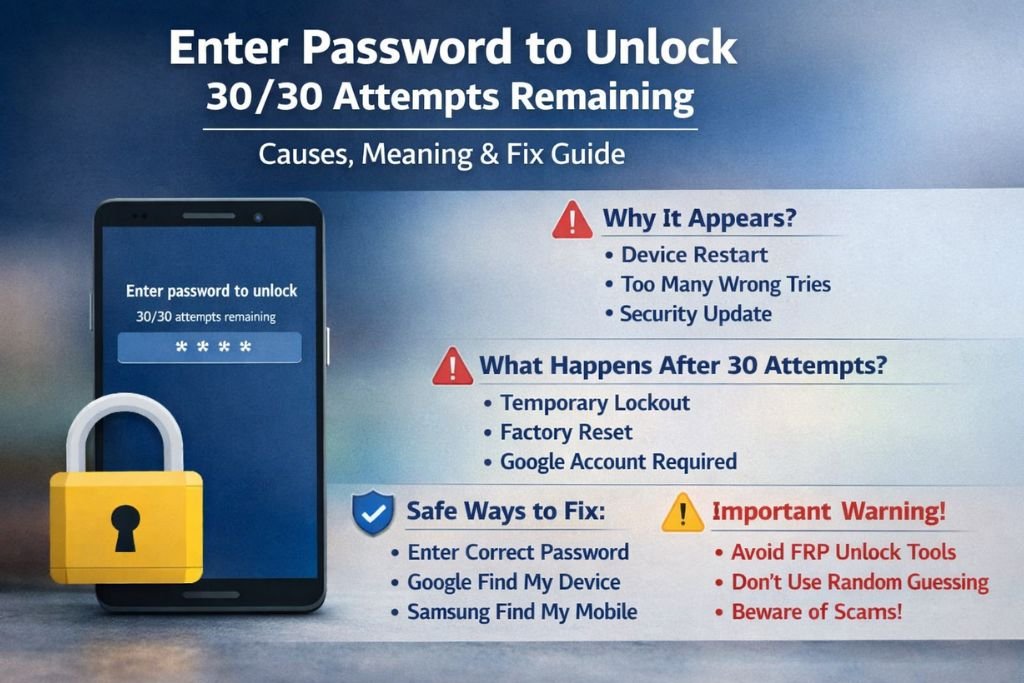
If your Android phone suddenly shows the message “enter password to unlock 30/30 attempts remaining”, it can feel stressful and confusing. Many users panic, thinking their device has been hacked or infected with a virus. In reality, this message is a built-in Android security feature designed to protect your data.
In this detailed guide, we’ll explain what this message means, why it appears, what happens after 30 failed attempts, and the safest ways to fix the issue.
You May Also Read About: Search Google or Type a URL
What Does “Enter Password to Unlock 30/30 Attempts Remaining” Mean?
This message appears on Android devices when the system requires your main lock screen password instead of fingerprint, face unlock, or pattern.
The “30/30 attempts remaining” part means:
- You have 30 chances to enter the correct password.
- Each incorrect attempt reduces the count.
- After reaching 0 attempts, security actions may be triggered.
It is a security protection mechanism, not an error or virus.
Why Does This Message Appear?
There are several common reasons why Android phones display this message.
1. After Restarting the Device
When you restart your Android phone, the system disables biometric unlock (fingerprint/face) until you enter the main password. This is a security requirement.
Devices from companies like Samsung, Xiaomi, Huawei, and Google follow this security rule.
2. Too Many Wrong Attempts
If someone enters the wrong PIN, password, or pattern multiple times, the system activates attempt counting.
3. After a Software or Security Update
Sometimes, after an Android update, the phone asks for the primary password for verification.
4. Long Period Without Unlocking
If the phone hasn’t been unlocked for several hours or days, Android may require the main password.
5. Security Policy Enabled
Some devices have a feature like “Erase data after 30 failed attempts.” If enabled, the device will factory reset after 30 incorrect entries.
What Happens After 30 Failed Attempts?
The result depends on your phone’s settings:
Temporary Lock
The phone may lock you out for a few minutes before allowing more attempts.
Factory Reset
If auto-erase is enabled, the devie will wipe all data and restore factory settings.
Google Account Verification (FRP)
After reset, you must log in with the previously synced Google account due to Factory Reset Protection (FRP).
If you don’t remember the account details, access may become difficult.
Is This a Virus or Malware?
No.
The “enter password to unlock 30/30 attempts remaining” message is not a virus.
It is part of Android’s built-in security system. If you see this message, your device is protecting your data — not being attacked.
How to Fix the Problem Safely
1. Enter the Correct Password Carefully
Before trying random guesses:
- Think about old PIN codes.
- Try commonly used number combinations.
- Check if Caps Lock is enabled (for passwords).
- Enter slowly and carefully.
Avoid guessing randomly 30 times.
2. Use Google Find My Device (If You Forgot Password)
You can reset your phone remotely:
- Visit Google Find My Device.
- Sign in with your Google account.
- Select your device.
- Choose “Erase Device.”
This will factory reset your phone. After reset, log in with your Google account.
3. Samsung Find My Mobile (For Samsung Users)
If you own a Samsung phone:
- Visit Samsung Find My Mobile.
- Log in.
- Select “Unlock.”
This works only if remote unlock was enabled earlier.
4. Factory Reset via Recovery Mode
If other methods fail:
- Turn off the device.
- Press Power + Volume Up (combination may vary).
- Select “Wipe data/factory reset.”
- Confirm.
⚠️ Warning: This deletes all data.
Important Safety Warnings
Do NOT:
- Use unofficial unlock software.
- Download random FRP bypass tools.
- Visit suspicious unlocking websites.
- Pay unknown services to unlock your phone.
These methods can:
- Install malware
- Steal personal data
- Permanently damage your phone
- Void warranty
Always use official solutions.
How to Prevent This Issue in the Future
To avoid seeing this message again:
- Keep your password written in a secure place.
- Use a password manager.
- Enable fingerprint and face unlock.
- Keep Google account credentials updated.
- Disable auto-erase if you’re worried about data loss.
- Backup data regularly to Google Drive or cloud storage.
Devices Where This Message Commonly Appears
This message is common on:
- Samsung Galaxy devices
- Xiaomi Redmi phones
- Huawei smartphones
- Google Pixel devices
- Other Android brands
It does not appear in this exact format on iPhones because Apple uses a different lockout system.
Final Thoughts
The message “enter password to unlock 30/30 attempts remaining” is a normal Android security feature designed to protect your personal data.
It appears after restart, multiple failed attempts, updates, or security checks. If you remember your password, simply enter it carefully. If not, use official recovery options like Google Find My Device or Samsung Find My Mobile.
Never attempt unsafe bypass methods. Your device is protecting your information — not malfunctioning.
If you tell me your phone brand and model, I can provide a more specific step-by-step solution.












Leave a Reply