
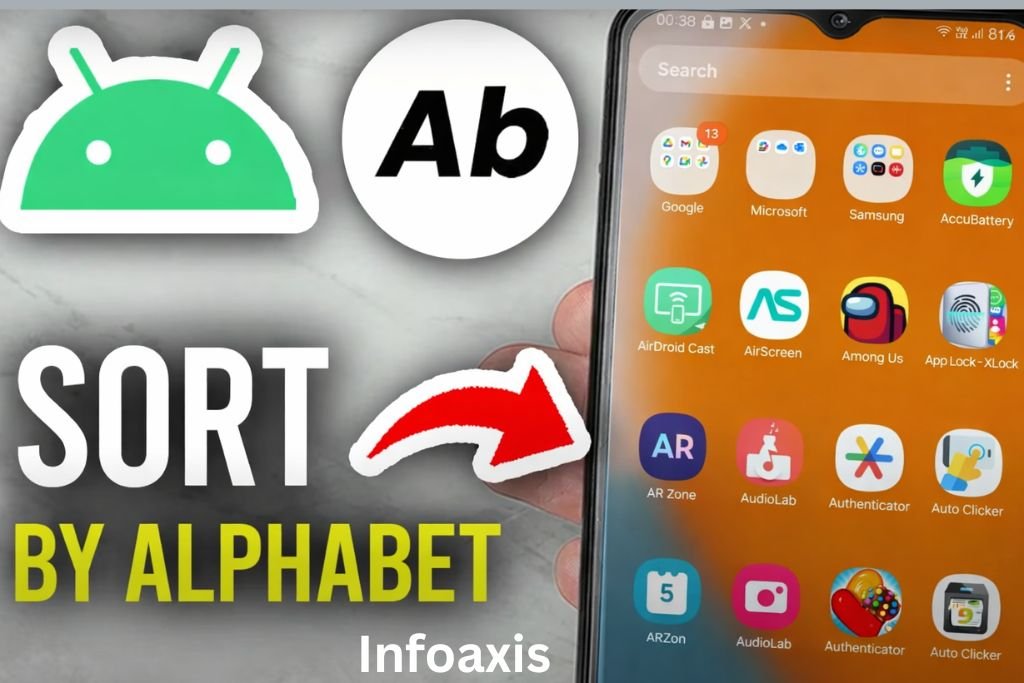
You unlock your phone.
Your thumb hovers mid-air.
Dozens—maybe hundreds—of apps stare back at you. Some you use daily. Some you downloaded once at 2 a.m. and forgot about. You scroll. And scroll. And scroll again.
Where is that app?
In a world where our smartphones are extensions of ourselves, chaos on your screen can quietly steal minutes from your day. But what if I told you there’s a simple, powerful way to bring instant clarity to your Android device?
Welcome to the complete guide on how to alphabetize apps on Android—and transform your cluttered screen into a beautifully organized digital workspace.
Why Alphabetizing Apps Changes Everything
Let’s start with something simple: predictability.
When your apps are in alphabetical order, your brain doesn’t search randomly. It follows a pattern.
Looking for Instagram? You instinctively scroll to “I.”
Need YouTube? Straight to “Y.”
Searching for Zoom? You already know where it lives.
Alphabetical order creates:
- ✔ Faster access
- ✔ Less scrolling
- ✔ Reduced frustration
- ✔ A cleaner mental experience
- ✔ A more professional, minimal look
It’s a small tweak—but it makes your device feel brand new.
Understanding the App Drawer vs. Home Screen
Before we dive into the steps, let’s clarify something important.
On Android devices, apps exist in two main places:
1. App Drawer
This is the master list of all installed apps. You usually access it by swiping up from the home screen.
2. Home Screen
This is where you manually place selected apps for quick access.
Most Android devices allow you to alphabetize apps in the App Drawer, not automatically on the home screen. The home screen is usually customizable manually.
Now let’s get to the good part.
How to Alphabetize Apps on Android (General Method)
The exact steps may vary slightly depending on your phone brand, but the core method is very similar across devices.
Step-by-Step Guide (Stock Android & Most Devices)
Step 1: Open the App Drawer
- Swipe up from the bottom of your home screen
OR - Tap the apps icon (grid of dots)
Step 2: Access the Menu
Look for:
- Three vertical dots (⋮) in the top corner
OR - A settings icon
Tap it.
Step 3: Choose “Sort” or “Display Layout”
You’ll typically see options like:
- Sort
- App Drawer Settings
- Display Options
Step 4: Select “Alphabetical Order” or “A–Z”
Choose the alphabetical sorting option.
Done.
Your apps will instantly rearrange themselves from A to Z.
It’s almost magical.
How to Alphabetize Apps on Samsung Devices (One UI)
Samsung phones use One UI, which has its own slightly customized interface.
Here’s how to alphabetize apps on Samsung:
- Open the App Drawer
- Tap the three-dot menu (top right)
- Tap “Sort”
- Select “Alphabetical order”
- Confirm if prompted
Your apps will now be arranged from A to Z.
Important Note:
This only affects the App Drawer, not your home screen layout.
What About Google Pixel?
On Google Pixel devices, apps in the App Drawer are automatically arranged alphabetically by default.
If yours isn’t:
- Open the App Drawer
- Tap the profile icon or settings
- Look for sorting options
Most Pixel devices already follow A–Z automatically.
How to Alphabetize Apps Inside Folders
Here’s where things get interesting.
Android does not always automatically alphabetize apps inside folders. If you open a folder and the apps seem random, you may need to rearrange them manually.
Manual Folder Organization:
- Open the folder
- Press and hold an app icon
- Drag it into alphabetical position
- Repeat until organized
It takes a few minutes—but the result is worth it.
Some third-party launchers (which we’ll discuss shortly) allow automatic alphabetical sorting inside folders.
What If Your Phone Doesn’t Have a Sort Option?
Some Android versions or custom launchers may not show a “Sort” option.
Don’t worry. You still have powerful solutions.
Use a Third-Party Launcher (The Smart Upgrade)
If your phone doesn’t support alphabetical sorting—or you want more control—installing a launcher can completely transform your experience.
A launcher replaces your phone’s default home interface and gives you customization power.
Popular Launchers That Support Alphabetical Sorting:
- Nova Launcher
- Microsoft Launcher
- Smart Launcher
- Action Launcher
How to Use Nova Launcher for Alphabetical Sorting:
- Install Nova Launcher from Google Play Store
- Set it as your default launcher
- Open Nova Settings
- Go to App Drawer
- Choose “Sort by”
- Select “Alphabetical”
Boom.
Your apps are now beautifully organized.
And you gain tons of customization features too.
Can You Alphabetize Apps on the Home Screen?
Short answer: Not automatically (on most devices).
The home screen is designed for personal customization. You typically:
- Press and hold an app
- Drag it to a new location
- Arrange manually
If you want automatic alphabetical arrangement on the home screen, you’ll need a third-party launcher.
Do New Apps Stay in Alphabetical Order?
Yes.
Once alphabetical sorting is enabled in the App Drawer:
- Newly installed apps automatically insert themselves into the correct alphabetical position.
No maintenance required.
It stays organized.
Does Alphabetizing Delete Apps?
No.
Sorting apps:
- Does not delete apps
- Does not remove app data
- Does not affect app settings
It only changes visual arrangement.
Safe. Simple. Instant.
Advanced Tips to Take Organization Even Further
Alphabetizing is powerful—but pairing it with these tips makes your Android experience elite.
1. Uninstall Unused Apps
Before organizing, declutter.
Go through your apps and remove:
- Old games
- Trial apps
- Apps you forgot existed
Less clutter = faster navigation.
2. Use Folders Smartly
You can combine alphabetical sorting with categorized folders:
Examples:
- Social
- Finance
- Productivity
- Shopping
- Media
Inside each folder, arrange alphabetically.
This creates layered organization.
3. Use Search Instead of Scrolling
Did you know your app drawer usually includes a search bar?
Instead of scrolling:
- Tap search
- Type first 2–3 letters
- Launch instantly
Alphabetizing makes search results predictable too.
4. Enable Vertical App Drawer (If Available)
Some Android launchers allow vertical scrolling, which works better with alphabetical organization than horizontal paging.
Vertical + Alphabetical = Lightning speed access.
Why Digital Organization Improves Productivity
This isn’t just about aesthetics.
Studies show that clutter—physical or digital—adds cognitive load. When your screen is chaotic, your brain works harder.
Organized apps:
- Reduce micro-frustration
- Save seconds repeatedly
- Improve daily efficiency
- Create a sense of control
And over weeks? Those seconds become hours saved.
Common Problems & Fixes
Problem: “Sort option disappeared.”
Fix:
- Check launcher settings
- Update your phone
- Restart device
Problem: “Apps reshuffled randomly.”
Fix:
- Disable custom layout mode
- Re-enable alphabetical sorting
Problem: “Folders aren’t sorting.”
Fix:
- Manual arrangement
- Switch to a launcher that supports auto-folder sorting
The Hidden Power of a Clean App Drawer
There’s something deeply satisfying about swiping up and seeing:
A
B
C
D
In perfect order.
It feels intentional. Professional. Calm.
And in a world where our phones dominate our attention, even small moments of order matter.
Final Thoughts: Reclaim Control of Your Screen
At the start, your phone felt chaotic.
Now?
You know exactly how to alphabetize apps on Android.
You understand:
- The difference between App Drawer and Home Screen
- Manufacturer-specific methods
- Folder organization tricks
- Third-party launcher power
- How to maintain long-term order
It’s a small change.
But small changes create momentum.
Open your app drawer right now.
Organize it.
Feel the difference.
And if you enjoy smart, simple tech guides like this, explore more helpful tutorials on Infoaxis, where we turn everyday tech problems into easy solutions.
Read More : Trisha TheHomeTrotters
Read More : YEX382V3YTE Air Conditioner















Leave a Reply